How to Bulk Download Wyze Events
Download selected or all available Wyze event videos to your computer as separate MP4 files or one combined ZIP archive.
This guide covers cloud event clips listed in Wyze Web View. It does not copy continuous footage from a camera's SD card.
Stop downloading Wyze videos one by one.
Wyze Web View is useful for watching event clips, but saving a day or two weeks of events can become a long sequence of individual downloads. Optimyze adds the missing selection and download tools directly to the Events page.
Select the events you need, then choose separate MP4 files or one combined ZIP. Everything is processed locally in your browser.
Learn about MP4 downloads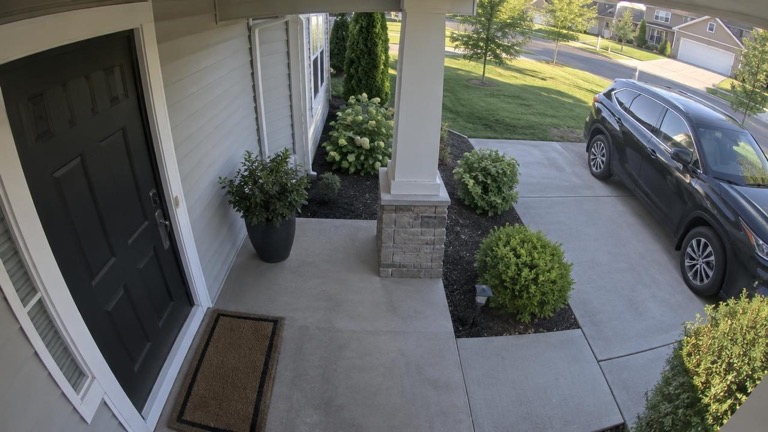
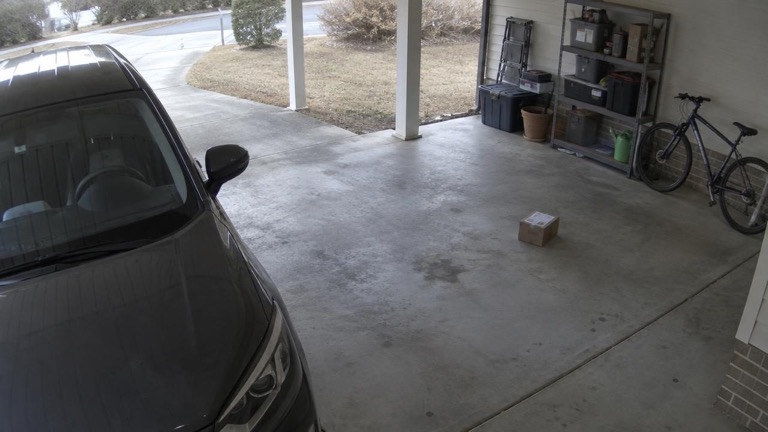
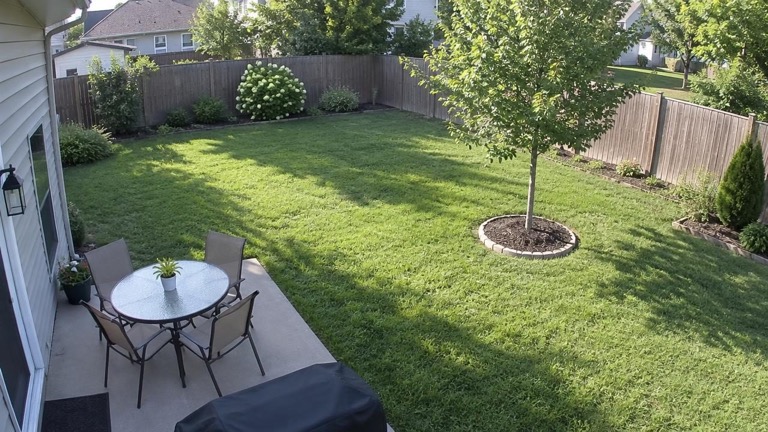
Download selected or all available Wyze events
The workflow stays on the familiar Wyze Events page, with the extra controls added where you need them.
Install Optimyze
Add the free Optimyze browser extension for your browser, then return to Wyze Web View.
Open Wyze Events
Sign in at my.wyze.com/events and let the event cards load. Optimyze works beside the normal Web View event list.
Select the clips
Tick individual events, use Select all, or keep selecting as you scroll through the available events you want to save.
Choose MP4s or ZIP
Save separate, clearly named MP4 files or choose Combined .zip for one archive of the selected Wyze event videos.
What Optimyze downloads
- Cloud event videos currently available in the Wyze Events list.
- Separate MP4 files or a combined ZIP archive for selected clips.
- Original-quality video with audio included by default.
- Filenames with the event date, time, camera, or your own pattern.
What it does not download
- Continuous SD-card playback footage from a camera.
- Events that have already expired or disappeared from Wyze.
- Live video that is not an event clip.
- Your Wyze credentials or media sent to an Optimyze server.
Useful when you need a day—or a whole event history—saved quickly.
Whether you are archiving footage before it expires, gathering clips from several cameras, or saving memories from a pet camera, Optimyze turns a one-at-a-time chore into a manageable batch.
Questions about downloading Wyze events
The short answers to the questions people usually have before saving a large batch of clips.
Can I download all Wyze events at once?
Optimyze adds a Select all control and lets you select events as you scroll through the Wyze Web View Events page. You can then save the selected clips as separate MP4 files or one combined ZIP archive.
How do I download multiple Wyze videos to my computer?
Install Optimyze, open my.wyze.com/events, tick the event checkboxes, and choose individual files or Combined .zip. The browser saves the resulting MP4 files or ZIP archive to your normal Downloads folder.
Can I download a day or two weeks of Wyze footage?
You can download the cloud event clips that are still available in your Wyze Events list. The available history depends on your Wyze plan and retention window. Optimyze downloads Events clips; it does not copy continuous SD-card playback footage.
Does Optimyze work with Wyze Web View?
Yes. Optimyze is designed for the Events page at my.wyze.com/events and adds download buttons and bulk-selection controls directly to the event thumbnails and open event.
Can I save Wyze events as normal MP4 files?
Yes. Individual downloads are saved as standard MP4 files at the camera's original quality, with filenames that can include the event date, time, and camera name.
Does it download the screen in real time?
No. Optimyze downloads the event media directly through your browser, so you do not have to play or screen-record every clip in real time.
What happens if Wyze says the camera audio is unsupported?
Optimyze can add a working speaker to the event popup and convert older G.711 camera audio to AAC where the browser supports it. When conversion is unavailable, it keeps the original audio instead of discarding it.
Ready to save your Wyze events?
Free to use, runs locally, and starts on the Events page.
Add to Browser